
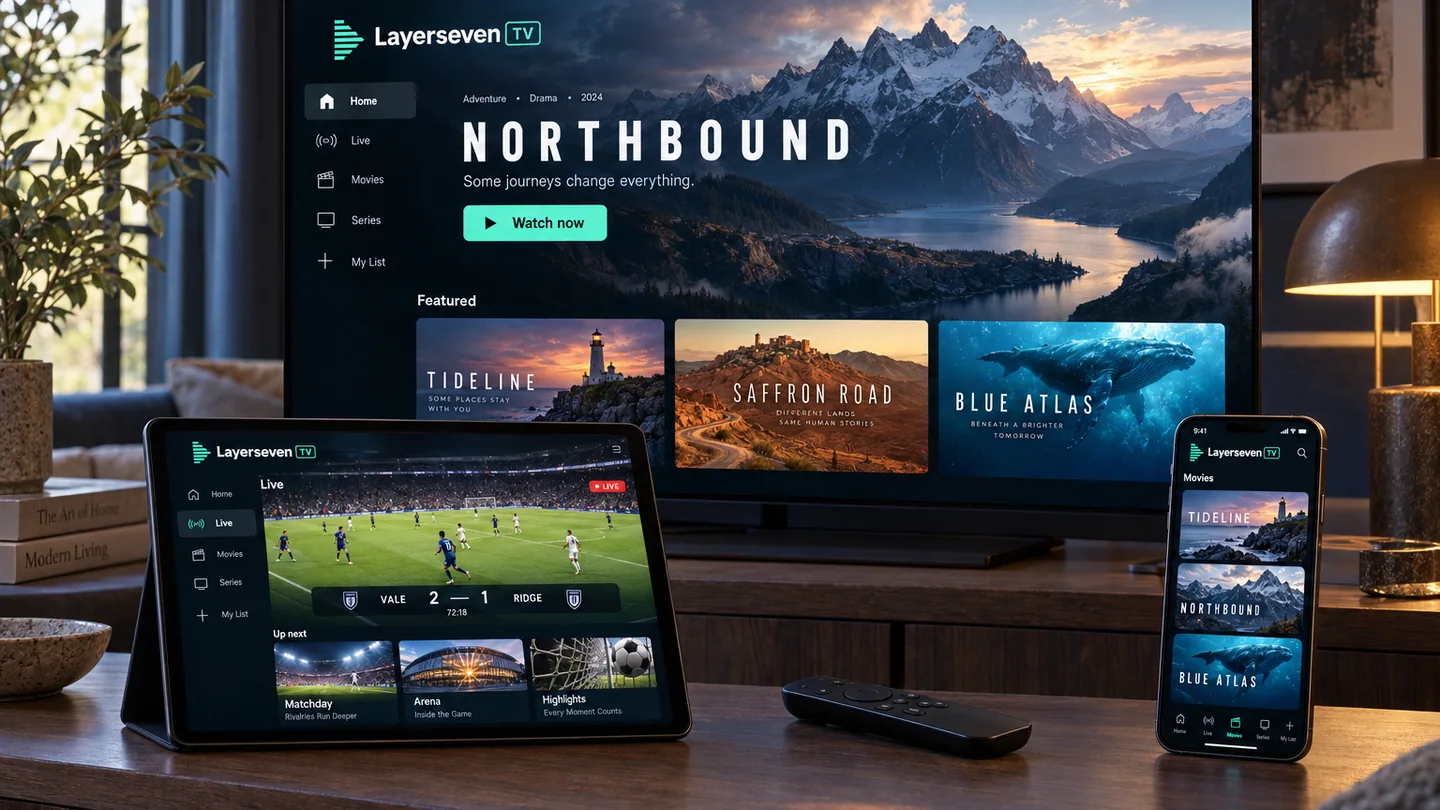
People expect installing an internet television service to be complicated, and then are slightly disappointed when it is not. There are three real steps, the same three on a Fire TV Stick, an Android box, an Apple TV or a laptop. Everything else is a variation on where the buttons live.
Step one: install a player
Your subscription is not an app. It is a set of connection details, and you need something to open them in. That something is a media player, and which one you use depends on your device: the official store on your platform will have at least one suitable option, and your provider should tell you which they recommend.
Install it from the official store for your platform wherever you can. It updates itself, it is less likely to break after a system update, and you are not sideloading a file of uncertain provenance.
Step two: enter your details
Open the player and look for “add playlist”, “add account” or “add user”. Enter exactly what you were sent. This is where most failures happen, and almost all of them are typing errors: a lowercase letter that should be uppercase, a missing hyphen, a trailing space the on-screen keyboard added for you.
If the player offers a pairing code — you type a short code into a browser on your phone and it fills in the rest — use it. Television remotes were not designed for entering long strings, and a phone keyboard eliminates a whole category of problem.
Step three: let the guide load
The first launch takes longer than every launch afterwards, because the channel list and the electronic programme guide are downloading. On a large channel list this can genuinely take a minute or two. Leave it alone. The most common support message we see is from someone who force-closed the app forty seconds in.
When something does not work
Work through these in order, because each one rules out a whole category of cause:
- Restart the device properly. Not “close the app” — power it off and on. Streaming sticks in particular behave badly after weeks of uptime.
- Check the details character by character. Take a photo of what you typed and compare it against what you were sent.
- Try a second device on the same network. If the second device works, the problem is the first device. If neither works, it is the network or the account.
- Test on a different network. A phone on mobile data is a quick way to find out whether your home connection is the problem.
- Pause other streams. If someone else in the house is watching something, you are sharing the line.
Three settings worth changing
Once it is working, these make a visible difference:
- Use a wired connection on the main television if you possibly can. Ethernet adapters for streaming sticks are inexpensive and solve more buffering complaints than any other single change.
- Match the refresh rate where your device supports it, so 50 Hz content is not being converted on the fly.
- Set your favourites in the first week. A channel list you have curated is a completely different experience from one you scroll through.
If you get stuck on any step, send a photo of the screen rather than a description of it. It is almost always faster.
Read next
Streaming live sport without the stutter
Fast motion is the hardest thing to stream well. What makes sport different, what to set up before kick-off, and why your stream is a few seconds behind the stadium.
Read the guideWhy your stream buffers, and how to actually fix it
Buffering is nearly always one of four things, and only one of them is the service. A practical diagnosis in the order that finds the cause fastest.
Read the guide